
How to Find Where New Users Stall in Your SaaS Onboarding
Many onboarding stalls show on the screen itself. Read your first-run flow screen by screen, then test the likely stalls with real users.
 Gabby SaaymanWith
 Vlad Shvets
On this page
Empact Newsletter
One email a month on what is working in AI search and SaaS go-to-market.
A new user signs up, clicks around for a few minutes and never logs in again. Then the next one does the same. Your dashboard has the activation rate to prove it, and the rate is low, and it says nothing about where those people stopped.
The standard plan is to put an event on every onboarding step, add session replay and wait for the funnel to fill. At a few dozen signups a month, that wait runs into months. This page shows how to find the likely stall points from your first-run screens before any of that, and what our agent found when we ran it on n8n.
Empact Partners does product-led growth for SaaS companies, getting new users from signup to a first result without a sales call. When new users go quiet, we find the screens that most likely stopped them.
Why Your Activation Rate Cannot Point at a Screen
An activation rate counts outcomes. It tells you how many new users reached the first useful thing, and that is a fair question for a board meeting. What it cannot tell you is which screen the others left on.
The funnel built to answer that needs an event on every step and enough people at each one before the gap between two steps means anything. At small volume that bites hardest. With twenty signups a month, one more or one fewer activated user moves the rate by five points, so a bad month and a bad onboarding can look alike.
You can wait a quarter for the number to settle, or you can look somewhere that does not need a sample. Our view is that the cheapest place to start is the screen itself, because many stalls leave a mark there. Think of an ask the newcomer cannot answer yet, two buttons of the same weight, a word nobody explained, or a screen that never says what finishing it gets you.
The cheapest place to look for an onboarding stall is the screen it happens on, and you can read every one of yours before a single event is tracked.
None of that needs traffic to find. It needs the screens, in order, and an afternoon spent reading them the way a stranger would. A read like that finds friction, which is not the same as proof, so what you get from it is a set of suspects. Confirming them takes people, and that comes later. First you need to know what to look for.
Five Things to Check on Every First-Run Screen
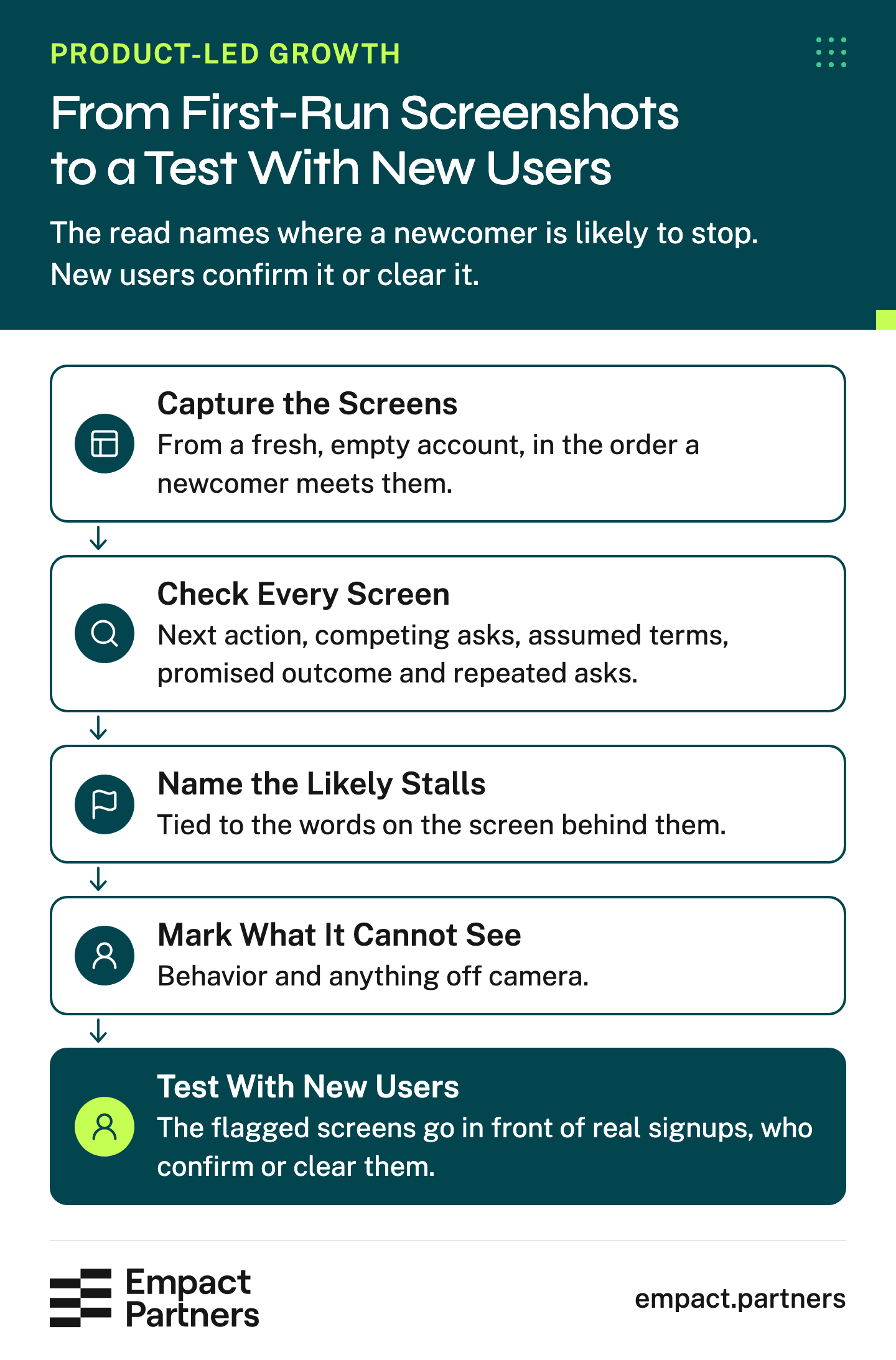
Start from a fresh, empty account. Your own login carries data, saved settings and tips you dismissed long ago, and a newcomer meets none of that. Capture every screen from signup to the first result, in the order a new user meets them, including any dialog that opens by itself. Then put the screenshots side by side and ask each one the same questions:
What to ask of every screen
- What does it ask the newcomer to do next, and does one action clearly lead?
- Are two or more asks pulling at the same moment, such as importing data, inviting the team and booking a call?
- Which terms does it assume the newcomer understands, and which accounts or permissions does it assume they hold?
- Does it say what the newcomer will have once they finish?
- Is it asking again for something an earlier screen already took?
Rate each answer clear, needs work or blocked. Clear means the screen shows it plainly. Needs work means a visible weakness that could slow someone down. Blocked means the screen asks for something the newcomer cannot supply from where they stand, or contradicts itself.
The last question only works on the sequence, which is why the screens sit side by side. A form asking for a company name looks fine on its own. It looks careless when the signup form two screens earlier already took it.
Six screens fit in an afternoon this way. The harder part is that your team stopped noticing these screens long ago, and the words that trip a newcomer are the ones everyone inside uses every day. That is the read we built an agent for.
The Agent We Built to Read First-Run Screens
Empact Partners built the Onboarding Flow Teardown to run that read. It takes two to ten screenshots of the first screens a new user meets, kept in the order they appear. For each screen it names what the screen asks, where a newcomer is likely to get stuck and the words on the screen behind it. Then it rates the screen on those same checks.
The agent also compares each screen with the one before it. It ends on five next steps, and the first three are changes to test. Because it reads only what the screenshots show, what it returns is a likely stall, never a measured drop-off. Real behavior, the moves between screens and anything off camera stay outside its view, and the report marks them unseen instead of guessing. From there, new users have to show whether the likely stalls are real:
What the Teardown Found in n8n’s First Run
To see what the read returns on a real product, we installed n8n, the workflow automation tool, on 17 November 2026. It was the self-hosted version 2.48.4, fresh, with no data and no settings. A self-hosted install has no website signup, so its first screen inside the product is the owner account form. We captured the six screens a new owner meets on the way to a first workflow and gave them to the agent in that order.
Those screens are the owner account form, a page offering the n8n Assistant and the Assistant’s setup dialog. After them come a choice between building an agent and building a workflow, the empty canvas, and the panel that asks what starts the workflow.
The third screen is where the read landed first. Click Get started on the Assistant page and a dialog asks for a model provider, an API key and a model. Above the fields it says “The Assistant runs on a model you pay for directly.”
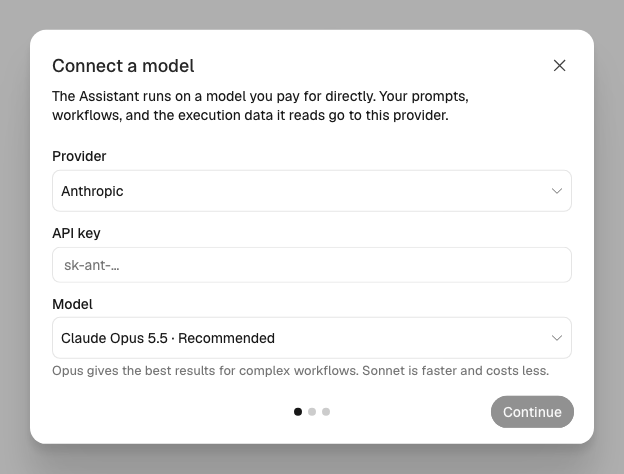
The dialog closes with an X, and the page before it offered to set the Assistant up later. What the agent flagged is what the dialog leaves unsaid. Nothing on it tells a new owner that n8n works without a key, and nothing links to where a key comes from. The page that led there sold the Assistant without mentioning a key at all.
So an owner who holds no API key is asked a question they cannot answer, before the product has done anything for them. Across the six screens, the read came back like this:
Scroll horizontally to see all columns when the table is wider than this page.
| Screen | What it asks | What the teardown flagged |
|---|---|---|
| 1. Owner account | Email, name and password | One clear next step, and no word on what happens after Next |
| 2. Assistant offer | Get started with the n8n Assistant | Sells the Assistant without saying it needs a paid model key |
| 3. Connect a model | A provider, an API key and a model | A paid key before the first build, with no link to get one |
| 4. First automation | Build an agent or Build a workflow | Two equal cards, no line on how they differ, no default |
| 5. Empty canvas | Add first step… | Publish and Evaluations show before any step exists, and “trigger” first appears a screen later |
| 6. Trigger picker | Choose what starts the workflow | Eight options of equal weight, the recommended one marked only in small grey text |
The read passed what deserved passing, too. Five of the six screens have one obvious next step, and no screen asks again for something an earlier one took. The trigger panel explains its key word in a sentence: “A trigger is a step that starts your workflow.” A read that can come back clean on a screen is worth more than one that only finds fault.
The report’s first page puts the result in one sentence. Then it leads with the three changes it would test first, which are to let owners skip the key and build, to recommend one starting card on the fourth screen and to call the first step a trigger.
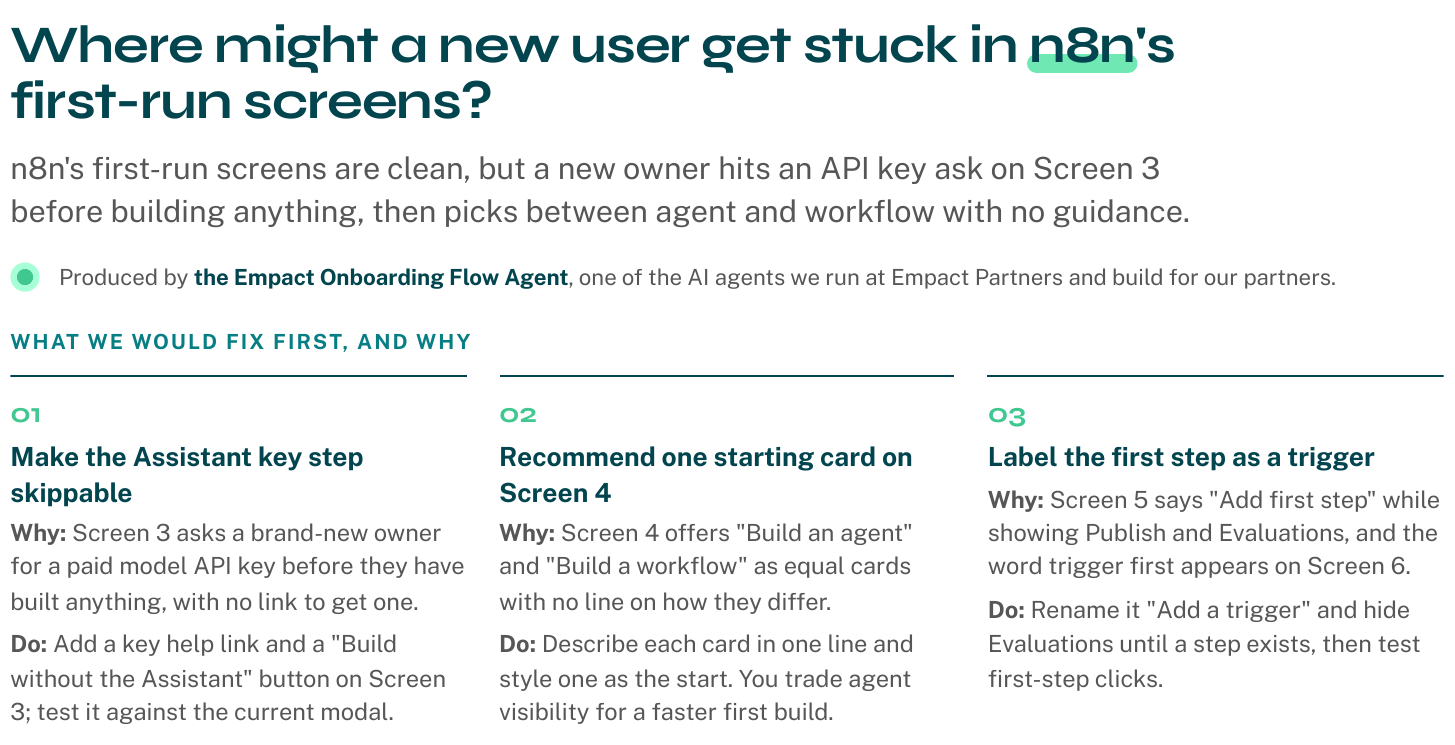
None of this says n8n’s new owners leave at the third screen. We hold no n8n usage data, and the read never claims to. It says where to look first. The run also suggests a check for your own read. If your product added an AI assistant this year, find where its setup sits in the first run and what it asks a newcomer to have ready.
Your own first run can get the same read. The tool on our site is a free preview of the agent we run in full for our product-led growth partners. Upload your screens in the order a newcomer meets them, and the report reaches your work email:
Test Each Flagged Screen With Real New Users
A flagged screen is only a likely stall until you watch new users meet it, and that does not take many of them. Take the changes the report puts first, get five to ten recent signups through the first run on a screen share or a call, and watch where they stop. Founders comparing notes on r/SaaS about a 20% activation rate described the same move:
Tips from Reddit
Founders on where to look first
The 8/10 who leave are either confused or unconvinced, and those fixes are in opposite directions.
Watch five to ten recent signups attempt the first valuable task, then separate people who understood the promise from people who never found a reason to continue.
That split helps on the call. A user who never reaches the result may be confused, and confusion shows up in the next action, the competing asks, the assumed words and the repeated asks.
A user who reaches the result and leaves may have expected something else. The progress check only half catches that, because no screenshot shows whether the result was worth having. Asking each of them what they expected helps you tell the two apart.
Some stalls no screen read will find. If the wrong people sign up, the best first run still loses them, and the fix sits in targeting, outside the product. A product that cannot yet do the job looks the same. Both read as onboarding stalls, and neither is fixed on an onboarding screen. Put together, that gives the order of work:
Screenshots point at the screens worth testing. Watching a handful of new users on a screen share tells you which of those really stop people. Tracking earns its place after that, on the steps you still cannot explain.
 Gabby Saayman on LinkedInOpens in a new tab
Once you know which steps you are measuring, an analytics tool earns its place. You can then wait until enough people reach them for the numbers to stop moving week to week. Before then the tool measures a funnel you have not located the problem in.
When the stall sits before the first result, the fix belongs in the first session, and our activation playbook takes you through that work:
The read takes an afternoon, and the calls take as long as it takes to book them. If the read comes back boring and the calls agree with it, you do not need anyone, us included.
What takes longer is what follows a real finding, and it needs somebody whose job it is. Someone has to ship the changes one at a time and test each against the old screen. Someone has to put events where the open questions are, and run the read again whenever a new feature lands in the first run.
How We Run the Read for Partners
We judge each screen of a first run by whether it moves a newcomer toward a result they would pay for. For a Product-Led Growth partner, we choose that result from what buyers say on sales calls and in support tickets.
Then we walk the first run in a fresh account. We keep only the stalls that line up with where users leave and what they tell support, and rank them by how many people each one costs. With the agent reading each screen, a consultant plans the path to that result in the order a new user needs it. Working with us on it covers five things:
What the work covers
- An audit of your first run and a roadmap of which screens change first
- A named senior GTM consultant who owns the path to the first result and joins your calls
- The result worth counting, chosen from your sales calls and support tickets
- The full Onboarding Flow Teardown agent reading every screen you change, with a short note on what to test next
- Everything done in your own channels, at your pace
The same read works wherever someone meets a new part of your product, such as a feature that ships into the first run or a settings screen an admin opens once. Each of those can be read before anyone builds a funnel around it.
Frequently Asked Questions
How many screenshots does a first-run teardown need?
Two to ten, in the order a new user sees them. Begin with the first screen after signup and end on the one where a user first gets value, because the gaps usually sit between those two. Include any dialog that opens by itself, such as an assistant setup or a welcome tour, since a newcomer has to deal with it.
Order matters more than polish. Repeated asks show up when each screen is compared with the ones before it.
Can a screenshot review tell us our drop-off rate?
No. A screenshot review reads what the screens show, so it can say where a newcomer is likely to stall and why, never how many did. A drop-off rate needs usage data: an event on each step and enough people passing through it. The useful order is the reverse of the usual one. Let the review pick which steps deserve those events, then measure them.
Should we buy a product analytics tool before fixing onboarding?
Not first, at low volume. With a few dozen signups a month, step-to-step numbers swing with every person, and you would be setting up tracking before you know which step matters. Read the screens and test the likely stalls with a handful of new users. Then set the tool up around the step you still cannot explain. At higher volume the order can flip, because the funnel fills faster than you can book calls.
How many new users should we watch to confirm a stall?
Practitioners on r/SaaS put it at five to ten, and that fits the job. You are not measuring a rate, you are checking whether people stop where the read said they would. Stop adding sessions once the same screen keeps stopping people, or once nobody hesitates there at all. Recruit recent signups who look like your buyer, since a colleague who knows the product will sail past the screen you are testing.
What is a competing ask in onboarding?
Two or more things a screen asks for at the same moment, such as importing data, inviting teammates and booking a call. Each pulls attention from the others, and a newcomer often does none of them. Two equal buttons for different paths count too, as n8n’s choice between an agent and a workflow showed. Most of the time, keep the ask that leads to the first result and move the rest to a later screen or an email.
Should an AI assistant’s setup be part of the first run?
Only if the first result needs the assistant. An assistant that runs on a model the user pays for brings a prerequisite with it, an account with a model provider and an API key. A newcomer may not have either ready. If the setup stays in the first run, say on the offer screen that a key is needed, link to where one comes from and show a plain way to carry on without it. Then test both versions with new users.
How do we capture screenshots that show what a new user really sees?
Sign up as a new user in a fresh workspace with no data, in a browser profile that has never logged in. Go from the first screen after signup to the first result without skipping anything. Capture each screen at full size, dialogs and empty states included, and number them in order. Blur any real person’s details before sharing them. Your own view carries saved settings and sample projects, so it hides what a newcomer meets.
What happens to the screenshots we upload to the teardown?
The screenshots are used only to write your report and are deleted once it has been sent, and nothing from them is kept for other work. If a screen shows real people’s data, blur or replace it before uploading, because the read only needs the layout and the words. A work email is the other thing the form asks for, since the report goes only to company addresses.
Does the teardown cover our signup page and onboarding emails?
No. It starts after signup, inside the product, from the screenshots you supply. The Signup Friction Check walks your public site up to the signup form, and the Onboarding Email Teardown reads the emails a new user gets in the same first days. Between them, the three cover one journey from the first visit to the first result.
What if the teardown flags a screen we think is fine?
Test it before you argue with it. Your team knows what every term means and why each step exists, which is the knowledge a newcomer lacks, so “it is obvious” is the weakest defense a screen has. Put the screen in front of a few new users. If none of them hesitate there, the flag was wrong for your audience, and finding that out cost an afternoon.
How often should we read our first run again?
Whenever something new lands in it: a feature, a dialog, a pricing change or an extra integration step. Each of those changes what a newcomer meets, and the team that shipped it is the least likely to notice. Between changes, a read every quarter catches the drift, such as a tip that still points at a button that moved. Keep the screenshots from each read, so the next one can be compared with the last.
Keep reading
Product-Led Growth How a SaaS User’s First Session Decides Retention
Split recent signups by when each first got a result, and you’ll see whether your first session is where your retention is decided.

Product-Led Growth Interactive Demos: What to Let Buyers Try Before a Sales Call
Choose a buyer task, build a focused interactive demo, and test whether it leads to qualified sales conversations.

RevOps How To Audit The HubSpot Workflows You Already Run
Find conflicting HubSpot workflows, assign owners and test what is safe to pause before you delete it or add an AI agent.