
How to Keep Badge Scans and Bought Contacts Out of Your Funnel
Badge scans and bought contacts sink every funnel rate. Hold them in HubSpot until the company engages, and report them on their own line.
 Leon ClaassenWith
 Vlad Shvets
On this page
Empact Newsletter
One email a month on what is working in AI search and SaaS go-to-market.
After a conference season and a data purchase, funnel reports break the same way. Thousands of contacts land in the CRM as leads, almost none of them answer, and every rate built on the lead count drops in the same month. Sales calls the leads bad, and the forecast built on those rates starts to miss.
Nothing about your buyers got worse. The lead count filled up with people who never asked to hear from you, so every rate divided by it fell. A badge scan or a bought contact is not a lead until the company engages, by replying, booking a call or filling in a form.
This page sets that rule up in HubSpot, so imported contacts wait outside the funnel and event and bought contacts get a reporting line of their own. Before you start, check four things, the first two with your admin:
The screens on this page are HubSpot’s own documentation images, and every step follows HubSpot’s documented behavior. The page stops at the funnel: it does not clean the rest of your CRM or compare event apps.
Our own CRM at Empact Partners gives a company a record only when it writes back, books a call or accepts an offer. We set up RevOps for SaaS companies on that rule, so their pipeline reports count only companies that engaged.
Find the Imports Already Counted as Leads
Start with what is already inside the funnel. Every imported contact that landed as a lead sits in your conversion rates today, and you can’t hold anything back until you can see it.
Step 1: Pull every imported contact into one view
HubSpot stamps each record with how it was created. A contact from an import carries Import in its Record Source property and the import’s name in Record Source Detail 1. HubSpot fills both in itself 1, which makes them a safe base for a view:
In the contacts index
Filter by source.
Open Contacts, add the filter Record Source is Import, and save the view as Imported contacts.
Add the columns.
Show Record Source Detail 1, Lifecycle stage and Create date.
Sort by the import name.
Each file’s contacts now sit together under the name you gave the import.
Add up the rows in your import files, and the view’s total should come close. A name you don’t recognize is usually a colleague’s upload or an old migration. It goes through the next step like the rest. In HubSpot’s example, the detail column is the one to read:
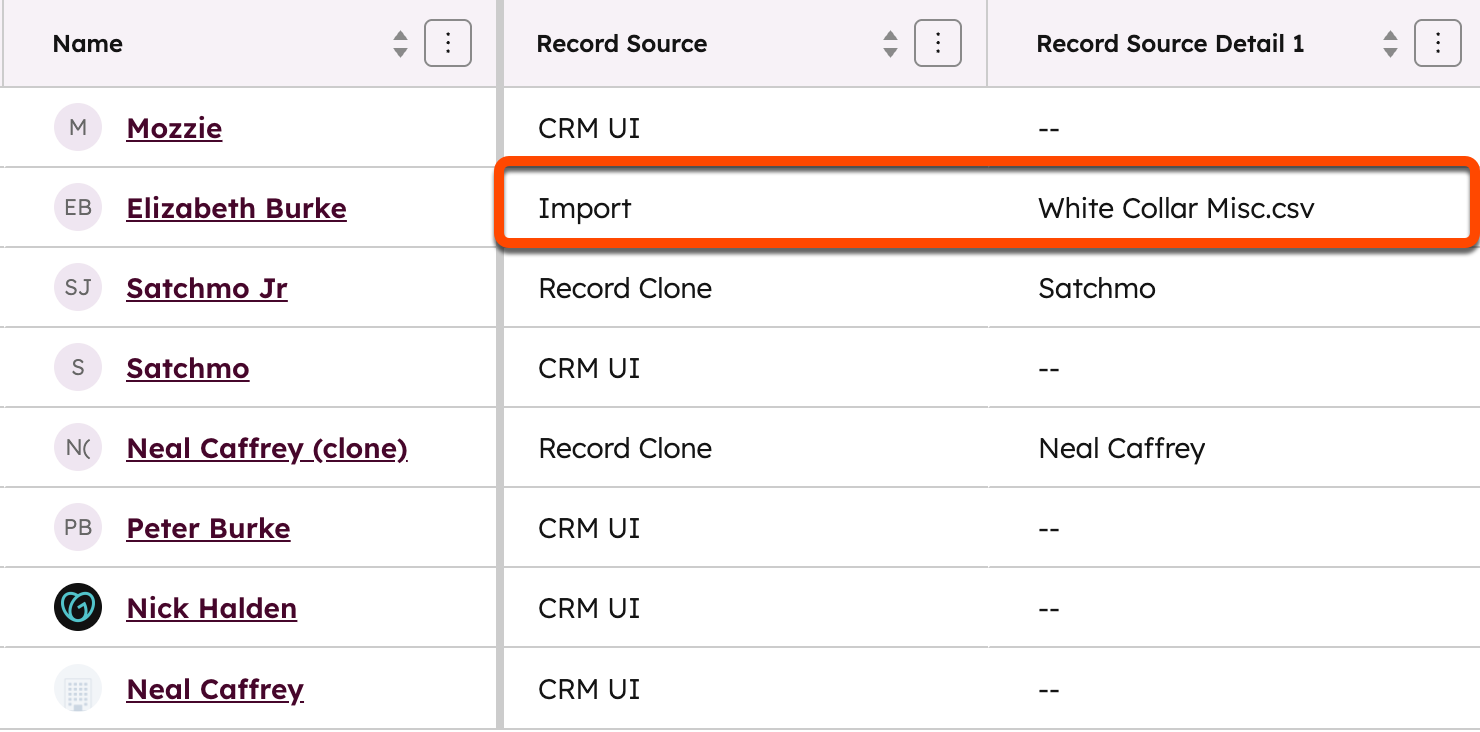
Step 2: Mark the contacts who asked for a conversation
Not every event contact is passive. Someone who asked for a demo at your booth, or ticked a box to hear from you, has already engaged, and they belong in the funnel. A badge scan with nothing written beside it has done nothing yet, and neither has any bought contact.
A promise made at the booth rarely survives the trip home either. The trade magazine EXHIBITOR reported one exhibitor’s exit interviews at a food-industry show in 2018. Of the visitors, 850 said the booth staff had promised to follow up, and fewer than 150 of those promises were written down 2.
So sort on whatever your file kept: a notes column, the scanning app’s qualifying question or a follow-up flag. Where it kept nothing, ask the booth team who asked for a call. Then record the result as two values on every row:
Scroll horizontally to see all columns when the table is wider than this page.
| Value | What to write | Example |
|---|---|---|
| Contact origin | Event conversation, Event scan or Purchased | Event scan |
| Origin detail | The event or the vendor, and the month | Ai4, October 2026 |
Expect the hand-raisers to be the smaller group. Alex Hormozi made the case for speaking slots at B2B events on his podcast, The Game. He put the upside at 50 to 100 opt-ins from a 500-person audience, with maybe 10 or 20% of those qualified 3. A badge scan is not even an opt-in.
Imports also leave contacts with no lifecycle stage, which no funnel report counts, and contacts with no owner, whom nobody will follow up once they engage. Know both numbers before Step 3 moves anything. Our free CRM Health Report counts them from one CSV export, the spreadsheet file your CRM downloads, with no login:
Hold Passive Contacts in a Stage Before Lead
Passive contacts wait in one of two places until they engage. Event scans, and bought contacts already in HubSpot, wait in a lifecycle stage of their own placed before Lead, and the workflow in Step 8 promotes them. New bought contacts wait in your sending tool, and Step 7 creates their record when they reply:
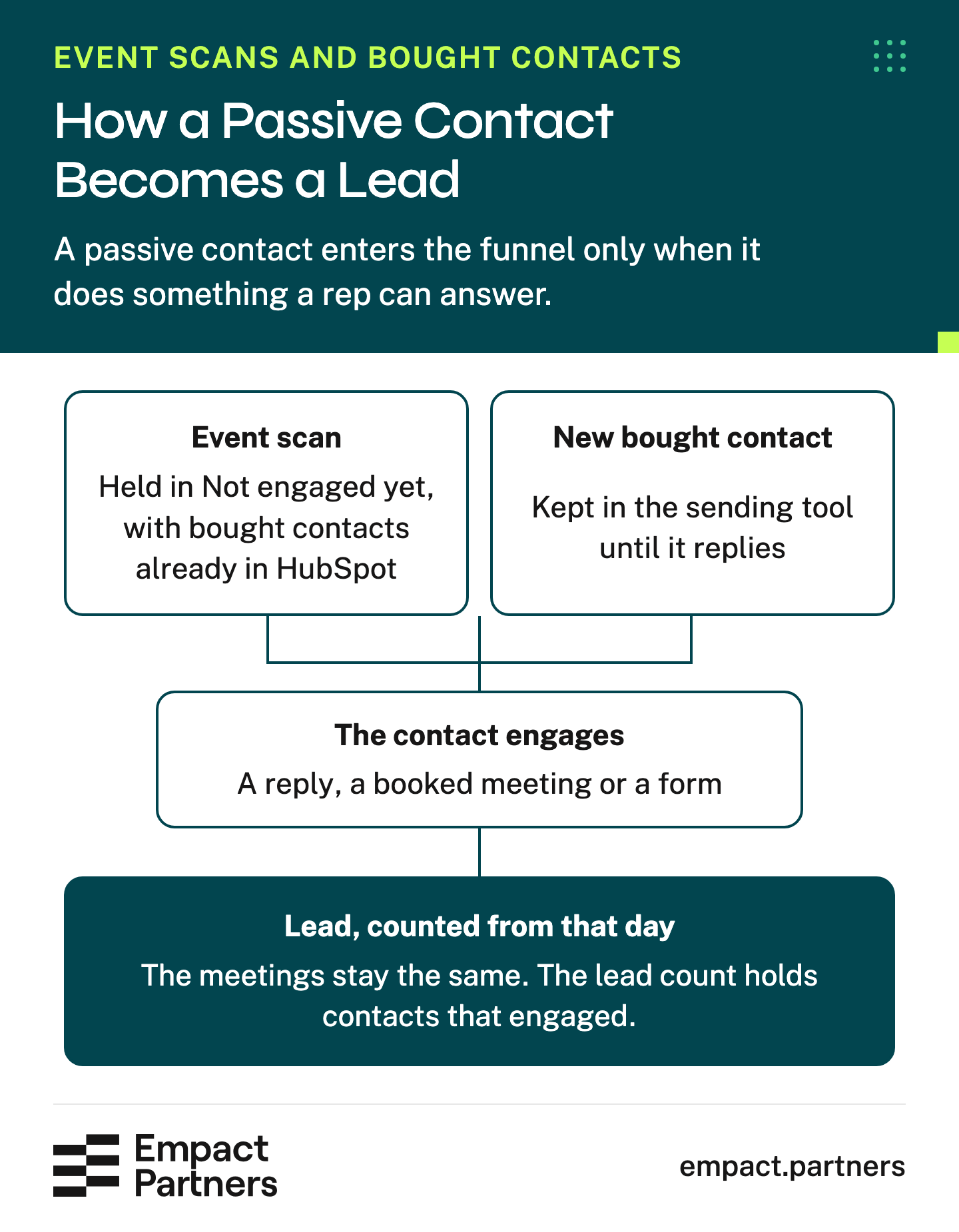
Holding them outside Lead changes what the lead count holds without changing the meetings. The rate your sales team reads becomes meetings against contacts that did something a rep can answer.
When imports sit in Lead, every rate built on the lead count falls together, and the channels that were working get blamed with the rest. A stage of their own keeps scans and bought contacts in view without letting them rewrite the funnel.
 Leon Claassen on LinkedInOpens in a new tab
Step 3: Create the holding stage and put it first
Go to Settings, then Objects under Data Management, select Contacts, open the Lifecycle Stage tab and click Add stage 4. Name it for what it holds, such as Not engaged yet, save it, and drag it to the top of the table.
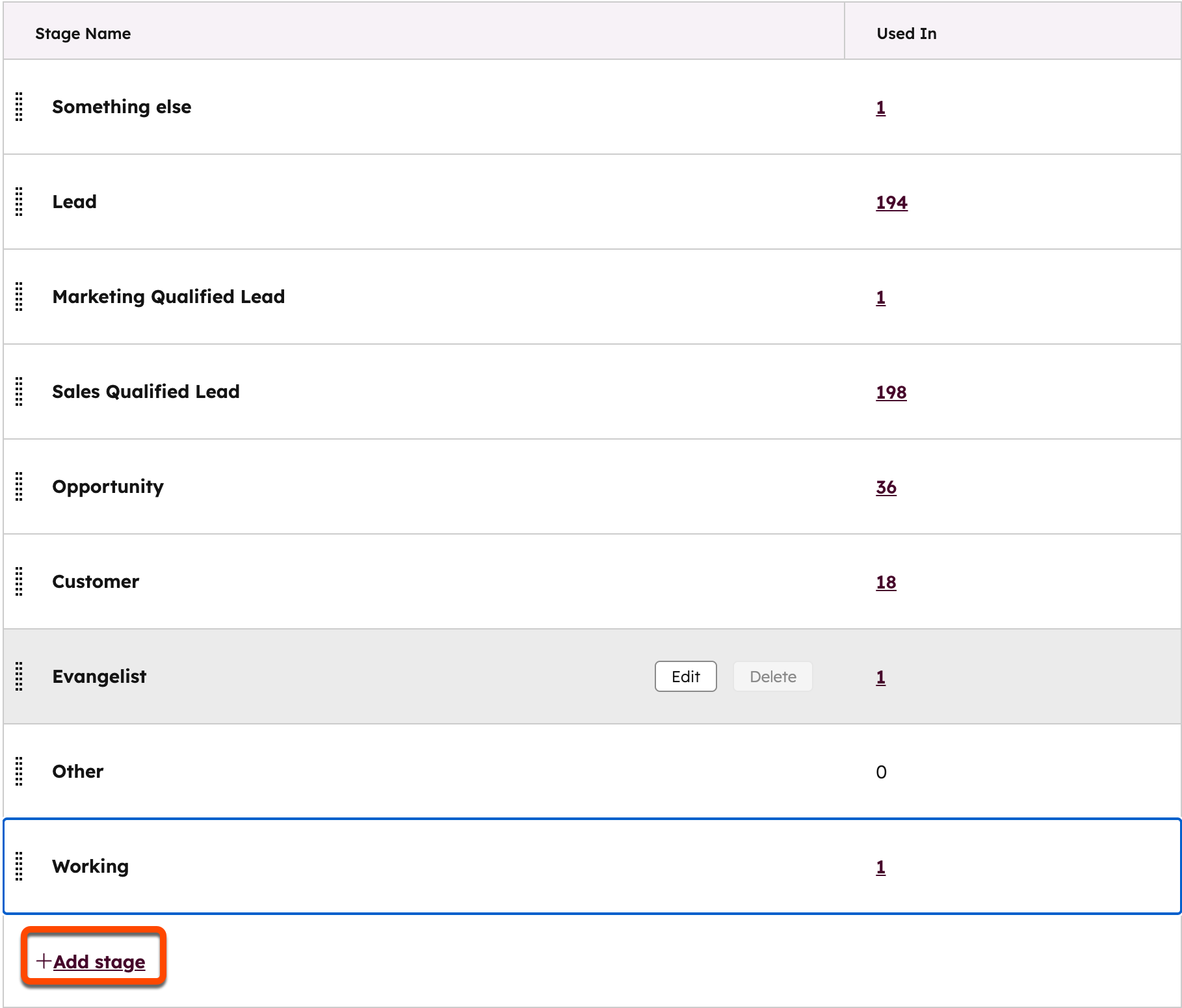
The order matters more than the name. HubSpot’s own tools, meaning imports, forms, workflows and its API, can only move a contact’s stage forward 5. With the holding stage first, every promotion out of it is a forward move a workflow can make, and no import can push an existing customer back into it.
Step 4: Check what HubSpot gives a new contact
In the same tab, open Pipeline Rules. When the rule that sets a stage on creation is on, every new contact gets the default stage 6. The exceptions are a form with its own default and a person who picks another stage by hand. In HubSpot’s example below, that default is Lead.
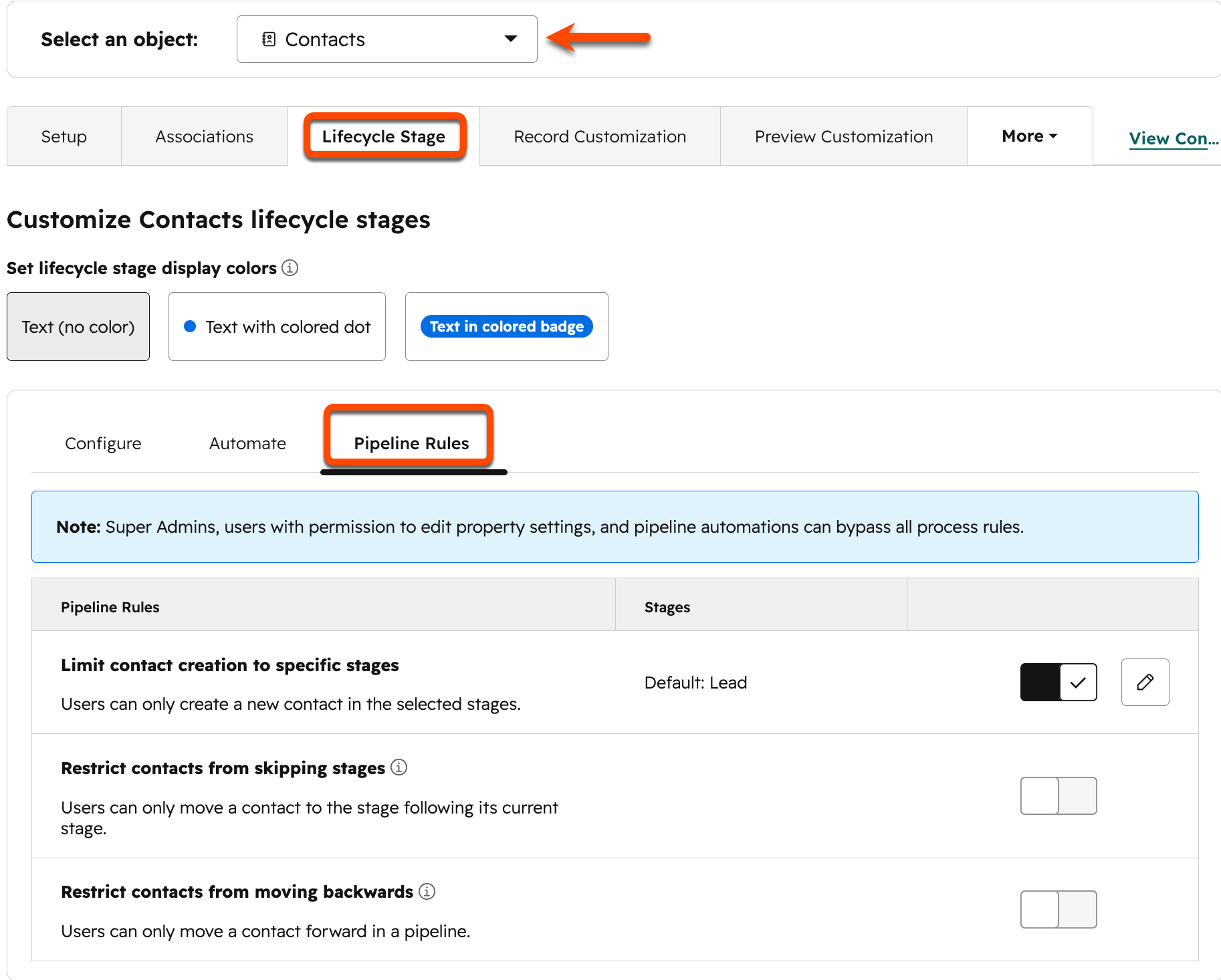
Keep Lead as the default for forms and contacts your team adds by hand. The imports in Step 5 carry their own stage in a column, and the test there shows whether your account takes it.
Step 5: Import event files with the stage and origin set
Create the two properties first, under Settings, then Properties, then Create property. Contact origin is a dropdown with the three values from Step 2, and Origin detail is a single-line text field. Then give each event file three columns: Lifecycle stage, Contact origin and Origin detail. Passive rows get Not engaged yet as their stage, and conversations get Lead.
On the import’s last screen, name it after the event and month and tick the box that creates a contacts segment from it 7. Set the rows as marketing contacts only where people agreed to hear from you. The same screen asks you to confirm the file holds no purchased contacts, which is why Purchased never travels this way.
Run a three-row test before the full file: one new scan, one new conversation and one contact who is already a customer. The scan should land in Not engaged yet, the conversation in Lead, and the customer should keep Customer. If the scan lands anywhere else, read this before you change a setting:
Step 6: Move this year’s passive imports back by hand
Contacts imported before today are still in Lead, and neither an import nor a workflow can move them back 5. Moving them by hand takes four passes:
In the Imported contacts view
Tag the event contacts.
Re-import each sorted event file with only the email address, Contact origin and Origin detail. An import can fill a property that was empty, so existing contacts pick both up.
Tag the bought contacts.
Bought files never go back through the import. Filter the view by their import names, select the rows, click Edit and set Contact origin to Purchased.
Leave out who engaged.
Filter to Contact origin is Event scan or Purchased and Lifecycle stage is Lead. Then exclude anyone whose Recent conversion date, Recent sales email replied date or Date of last meeting booked in meetings tool falls after the event 8.
Move the rest.
Select what is left, click Edit, choose Lifecycle stage as the property to update and set Not engaged yet.
That clears their Became a Lead date 5, which is what you want, since from now on the date means the day a contact engaged. If Pipeline Rules blocks moving backwards, HubSpot’s note on that tab says Super Admins can bypass it. Bought contacts already in HubSpot stay held too, and get no marketing email from it 9.
Leave Bought Contacts Out Until They Reply
Bought contacts never go through the import. HubSpot’s import makes you confirm that your contacts expect to hear from you and that the file holds no purchased contacts 7. Its anti-spam policy also bars contacting purchased, rented or borrowed contact data through HubSpot 9. Whether you may email that data at all is a legal question, and this page doesn’t answer it.
Outside the CRM is also the honest place for them. Our own outbound reaches people who never asked to hear from us. From August to October 2026, about one in 75 of the people we emailed for the first time wrote back 10.
Had every one of them entered our CRM as a lead, our conversion rates would have measured how many people we emailed, rather than how many answered at all. So a company gets a record in our CRM when someone there replies or books, and a cold campaign step never creates one.
A company you emailed cold belongs in your CRM from the day someone there writes back.
Step 7: Sync only the replies from your sending tool
If your sending tool pushes every contact it emails into HubSpot, switch that sync off. Sync only the contacts who reply or book. When a contact came from a bought file, set Contact origin to Purchased and put the vendor in Origin detail. Where the tool can’t filter what it syncs, add the week’s repliers by hand from its reply view. Keep the tool’s count of everyone it emailed from each file, because Step 9 needs it.
A thread in r/SaaS about buying leads from marketplaces landed in the same place (an SQL is a sales-qualified lead):
Tips from Reddit
From a thread on buying leads
The hard lesson is that if the lead never had a real chance of becoming a SQL, it wasn’t a lead; it was just activity.
Follow-up doesn’t create demand, it only surfaces it.
Move a Contact Into the Funnel When the Company Engages
A held contact is only worth keeping if it leaves the hold the day its company answers. A workflow moves it, on a Professional or Enterprise plan 11, and Step 3’s order is what lets it.
Step 8: Build the promotion workflow
The workflow watches held contacts for the three signals and moves anyone who shows one into Lead:
In HubSpot’s workflow editor
Start from scratch.
Go to Automation, then Workflows, click Create workflow and choose From scratch.
Add the triggers.
Under When an event occurs, add Form submission, Meeting booked and Replied to email. On Sales Hub Professional, add Contact booked a meeting through a sequence as well.
Limit it to the hold.
Below the triggers, add the filter Lifecycle stage is Not engaged yet, so the workflow never touches a contact already in the funnel.
Set the stage.
Add the action Set property value, choose Lifecycle stage and pick Lead, or whichever stage your team agrees a reply earns.
Turn it on for new activity only.
When HubSpot asks about existing contacts that meet the triggers, choose not to enroll them, or every old form fill promotes at once.
Test it with your own address: put yourself in Not engaged yet, submit one of your forms, and your record should move to Lead. HubSpot keeps a Date entered Lead for each contact 5, so a cohort report counts a March scan as a lead from the day it replied in June.
Check the HubSpot workflows you already run as well, because an older one that sets Lead on every new contact will undo the hold. Replied to email fires only on replies to marketing emails 11.
When a held contact answers a rep’s own email, the rep moves them to Lead on the record, a forward move anyone who can edit it may make. On Starter or the free CRM, the three dates from Step 6 do the workflow’s job 8. Filter the hold to contacts with any of them after the event, and move those to Lead by hand each week.
Report Event and Bought Contacts on Their Own Line
Events and data purchases still cost money, so they still need a number. They get one beside the funnel instead of inside it, and it tells you what the booth and the purchase bought.
Step 9: Build the source report
Create a custom single-object report on contacts 12. Filter it to Contact origin is any of Event conversation, Event scan and Purchased, and break it down by Origin detail and Lifecycle stage. Each event becomes a row showing how many contacts are still held and how many reached Lead or beyond.
Bought contacts need one number from outside HubSpot, the count your sending tool emailed from each file, because the ones who never replied were never synced. Put both on the leadership dashboard beside the funnel, with these columns:
Scroll horizontally to see all columns when the table is wider than this page.
| Column | Where it comes from | What it answers |
|---|---|---|
| Reached | Events: contacts with that Origin detail. Purchases: everyone the sending tool emailed from that file | How many people the event or the purchase put in front of you |
| Engaged | Contacts with that Origin detail in Lead or a later stage | What the event or the data bought you |
| Share engaged | Engaged divided by reached | Whether the next booth or vendor deserves the budget |
| Opportunity or later | Contacts with that Origin detail at Opportunity, Customer or beyond | Whether the engagement turned into pipeline |
Once the line exists, it needs a dashboard the team opens every week. The steps for building one are in our playbook:
What the First Month Shows You
Watch one number per source for the first month: its share engaged from Step 9. A purchased source that stays near zero after a month is the first one to question before the next order. An event whose scans stay quiet while its conversations reach Opportunity tells you where the next booth budget goes: more conversations, fewer scans.
What the line can’t tell you is why a quiet source stayed quiet, the wrong buyers or the wrong moment. That is decided upstream, in who you choose to reach, before anything lands in the CRM.
Empact Partners would start where this page does, with your data flows: every import, form and integration that feeds your lifecycle stages, and which rates each one bends. Then we build your CRM on the rule our own runs on, so the next decision about who to reach rests on numbers that mean something. The work covers:
RevOps work with Empact Partners
- A review of the tools and data flows feeding your lifecycle stages
- Lifecycle stages that count a lead from the day a company engages, in the CRM you have
- Pipeline and attribution reports in the dashboards your team already uses
- The CRM Health Report’s agent checking fresh exports as the work goes on
Frequently Asked Questions
Does a badge scan ever count as a lead?
Only once the company does something after the event: replies, books a call or fills in a form. A scan records that someone stood near your booth long enough to be scanned, and nothing about whether they want to talk.
The exception is a visitor who asked for a conversation at the booth and whose request was written down. That person engaged on the spot, so they start in Lead, with Event conversation as their Contact origin.
What should count as engagement?
An action that a rep can answer: a human reply, a booked meeting or a form submission. Opens and clicks don’t count, because nobody can answer them. Agree the three with sales before Step 8, since the workflow promotes on exactly what you write into it, and sales has to trust every lead it creates.
Won’t holding contacts outside the funnel hide what our events produce?
The event line shows more than the old funnel did. Built in Step 9, it reports how many people each event put in front of you, how many engaged and how many reached Opportunity. What stops is the event inflating the conversion rates of every other channel. Finance gets one number for the booth and an honest rate for everything else.
Can we import bought contacts if we never email them from HubSpot?
HubSpot’s import asks you to confirm two things: the file holds no purchased contacts, and the people in it expect to hear from you. Importing a purchased file means ticking a box that is not true.
Keep bought contacts in the tool that emails them and create the HubSpot record when the company replies. Their numbers still reach the report: the sending tool’s count of everyone it emailed is the denominator in Step 9, and the repliers synced to HubSpot are the engaged.
Is holding bought contacts out of the funnel a consent fix?
No. Where the data came from and what your local law allows are questions for your lawyer, and this page doesn’t answer them. Holding contacts out keeps your numbers honest, and leaving purchased data out of HubSpot matches what its import and anti-spam terms ask.
Whether you may email a bought contact at all is a separate decision, made before the campaign starts.
What do we tell the board changed in the numbers?
That the lead count fell and the conversion rates rose for the same reason: leads now start when a company engages, not when a file is imported. Show the event and bought-contact line next to the funnel, so nothing disappeared. Then show the meetings, which did not change, so the board sees the counting changed and the selling did not.
How long before the separated rates mean anything?
Give them one full sales cycle from the day you switch. Contacts promoted after the change carry their engagement date, while older leads still carry their import history, so the first weeks mix both.
Compare like with like by building cohort reports on Date entered Lead. The imported contacts you moved back in Step 6 rejoin the funnel only when they engage, so they stop bending the rate the day you move them.
Does this work in Salesforce or another CRM?
The rule works anywhere: a status before lead, a source field, a trigger on engagement and a report by source. The clicks on this page are HubSpot’s. In another CRM, check two things before you copy the design. Can its automation only move a record forward? And what status does it give a record created by an import?
What happens to a held contact whose company is already a customer?
If Sync lifecycle stages is turned on under Lifecycle Stage, then Automate, HubSpot gives a contact its primary company’s stage, and updates it when the company’s stage moves forward 6. A scan from a customer company becomes Customer, which is right, since it was never a new lead.
Check that setting before your first import, so the count of held contacts doesn’t surprise you.
Should event conversations wait in the hold if they go quiet after the show?
No. A visitor who asked for a call engaged at the booth, so they stay in Lead even if your follow-up email gets no answer. If many of them go quiet, look at the follow-up first, then at fit and timing. Moving them back into the hold would hide the question.
What about webinar sign-ups and content downloads?
Webinar and download contacts filled in a form, so by this page’s rule they engaged and skip the hold. Whether a download counts as a lead or as a subscriber is a separate definition, and your marketing and sales teams agree it once. The hold is only for contacts who did nothing at all.
Should we stop buying contact data?
Decide after a month of the line in Step 9. A contact data provider whose contacts engage earns the next order, and one whose share stays near zero has to explain why. What changes is that the purchase gets judged on its own number, instead of hiding inside a funnel rate that nobody can take apart.
Sources (12)
- HubSpot, "View and use the Record Source property" (2026)↩1
- EXHIBITOR magazine, "Lead, Follow, or Get Out of the Way" (2018)↩1
- The Game with Alex Hormozi, "How to Price a Service Business, Ep 1002" (2026)↩1
- HubSpot, "Create and customize lifecycle stages" (2026)↩1
- HubSpot, "Use contact and company lifecycle stages" (2026)↩1↩2↩3↩4
- HubSpot, "Automatically set and sync record lifecycle stages" (2026)↩1↩2↩3
- HubSpot, "Import records and activities" (2026)↩1↩2
- HubSpot, "’s default contact properties" (2026)↩1
- HubSpot, "Anti-Spam Policy" (2026)↩1↩2
- Empact Partners, "replies to our own outbound campaigns, August to October 2026" (2026)Empact Partners' own data↩1↩2Instantly campaign analytics).
- HubSpot, "Set event enrollment triggers" (2026)↩1↩2
- HubSpot, "Create custom single object reports" (2026)↩1
Keep reading
RevOps HubSpot vs Salesforce: Pick the CRM Your Team Can Keep Clean
Choose by who will run the CRM each week and what your deals need, then count what AI agent calls will cost on each.

RevOps What Your CRM Needs When Your SaaS Moves Upmarket
Bigger deals stall on people your CRM never recorded. Put every buying role on the deal, and flag one-person deals past discovery.

RevOps How to See Which Signups Came From ChatGPT and Reddit
Signups from ChatGPT and Reddit land in analytics as Direct or Google. Add one form field, code the answers with Claude, report both.